
Before You Begin
- You must be logged into the Facilipay Dashboard with admin access.
- Have your updated brand assets (logo, background images, colour codes) ready before you start.
Step-by-Step: Update Your Brand Assets
-
Open App Design Settings
Log in to the Facilipay Dashboard, click My Business, then select Design. -
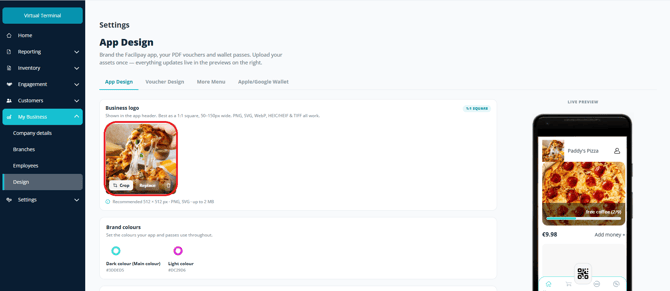
Upload Your Business Logo
Hover over the Business Logo section and click to upload a new image. You can:- Upload from your device
- Drag and drop a file
- Use a URL
Note: The same process applies to background images and banners (e.g. Order Ahead banner).
-
Update Other Images
Upload any additional images that represent your business. Use the preview panel to see changes in real time. -
Set Your Colour Scheme
Select your preferred brand colours, then click Apply to confirm. -
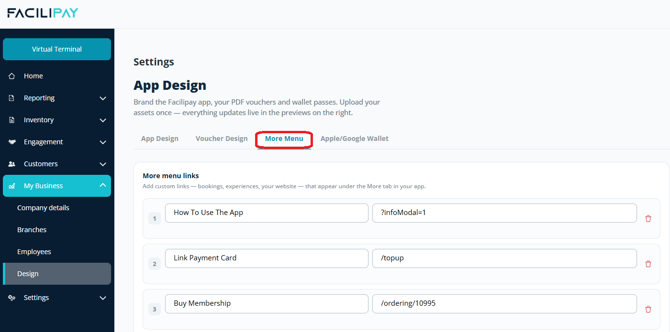
Add Custom Links (Optional)
Scroll to the More section and add any custom links you'd like to display in your app:- Link name
- URL
-
Save Your Changes
Click Save in the bottom-right corner.
What Happens After You Save
Your branded app is updated with your new logo, images, colours, and links. Customers will see the changes the next time they open the app.
Tips & Best Practices
-
Use the preview panel: Confirm your design matches your brand before saving.
-
Test on multiple devices: Check how the app looks on phones and tablets after the update.
-
Keep originals: Save the original asset files in case you need to revert or reuse them later.