
Before You Begin
- An Android tablet is required to use Retail CP Kitchen Order Display effectively.
- You should have admin access to your Clover device and Facilipay Dashboard.
Step-by-Step: Install and Configure
-
Install Retail CP Kitchen Order Display
Install the Retail CP Kitchen Order Display app. We recommend:- Install the Retail CP app on your Clover device
- Download the Kitchen Order Display app on an Android tablet
On Clover, open the Retail CP app from the right-hand menu — this opens the Retail CP support page. Tap Download in the top right corner to download the Kitchen Order Display app to the tablet.
Important: The display app is provided as an APK file. You may need to allow installations from Google Chrome within the tablet's settings.
-
Open and Link the Tablet
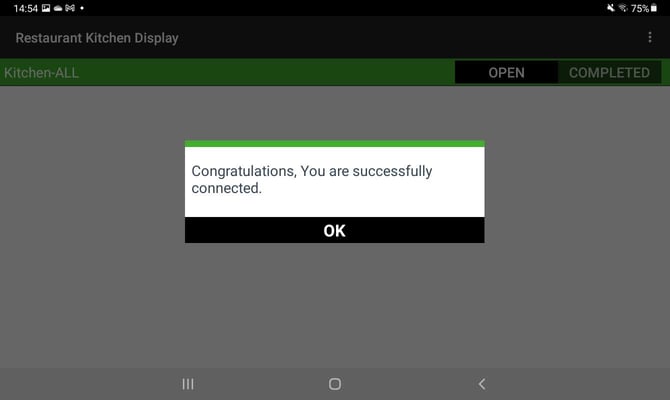
Open the Kitchen Order Display app on the tablet, select your region, then link the tablet to your Clover account by:- Logging in (not supported on all tablets), or
- Scanning the QR code from the Retail CP support page (recommended).
Once scanned, the tablet is linked to your Clover account.
-
Configure Labels and Prep Times
To ensure online orders appear on the display:- Open the Retail CP app on your Clover device.
- The app pulls all Labels from your Clover Inventory.
Only labels with a Prep Time set will appear on the Kitchen Display.
- Set prep times only on labels assigned to items available for online ordering.
- The prep time per label should match your prep time configured in the Facilipay Dashboard.
Important: Labels must be assigned to items in Clover Inventory for Order Display to function correctly.
Save the settings once complete.
-
Configure Display Settings
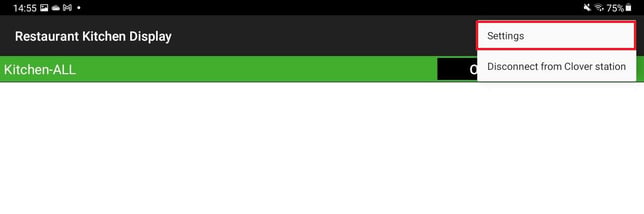
On the tablet, tap the three dots in the top right corner to access settings. You can configure:- Display Open Orders only, or Open and Completed Orders
- Auto-refresh interval
- Maximum order age
-
Process Orders
Once configured, online orders automatically appear on the Kitchen Display when:- The item has a valid Clover label
- The label has a prep time set
Modifiers appear in red text for visibility. After fulfilling the order, tap Done to remove it from the display.
Retail CP Support
For app-specific support, contact Retail CP directly:
- Phone: +353 42 9371248
- Email: app@retailcp.ie
- Web: retailcp.ie
For Facilipay-related support, contact support@facilipay.io.