
Before You Begin
- You must have access to your Clover Dashboard and the App Market.
- Note that this is a third-party app from Mad Creation Apps — pricing varies by region.
Step-by-Step: Install and Configure the App
Download the App
Download Order Display — Kitchen Display Service from your Clover Dashboard.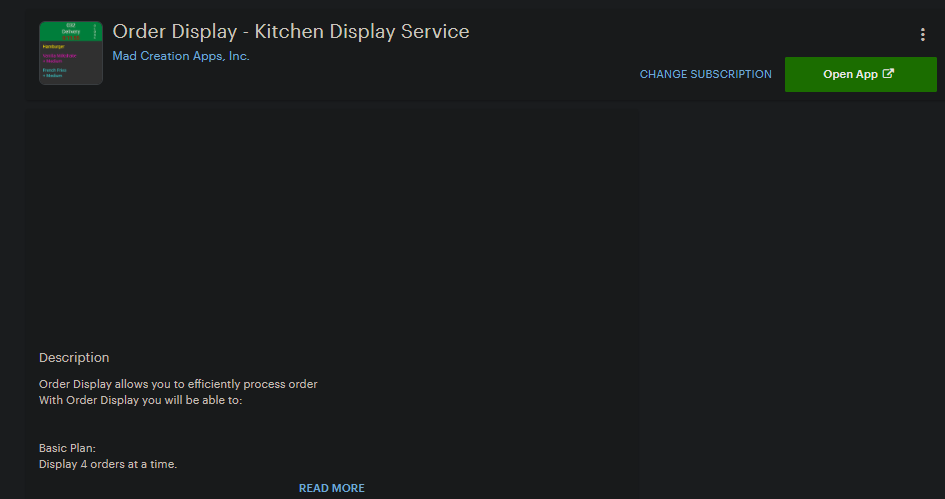
Open the App
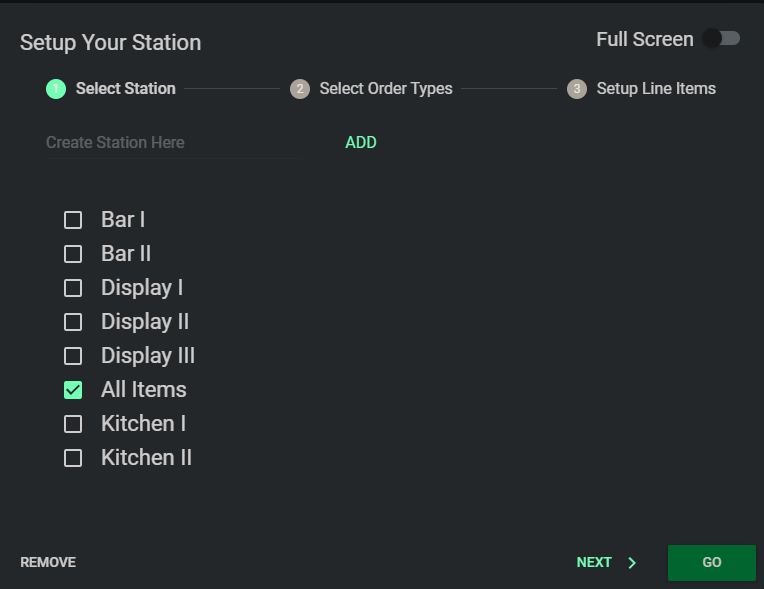
Once downloaded, you can open the app from your Clover Dashboard. The app is web-based, so you can have it open on any computer, tablet, or smartphone.Go through the setup steps and select Display All Items.
Enable Order Ahead Tender
Enable the Order Ahead tender so online orders appear on the display.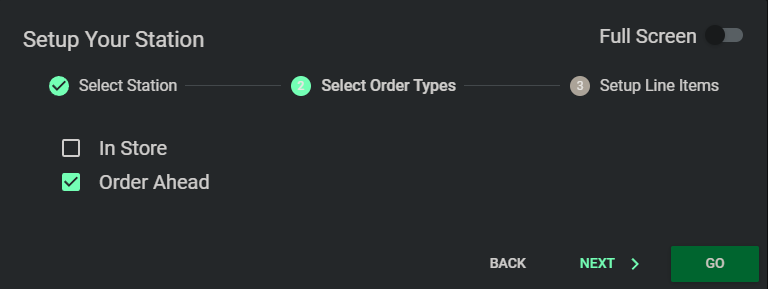
Choose Categories and Items
Choose the categories and items you want to appear on the display. If you only want items visible for ordering, enable those. You can also enable just specific items if you wish.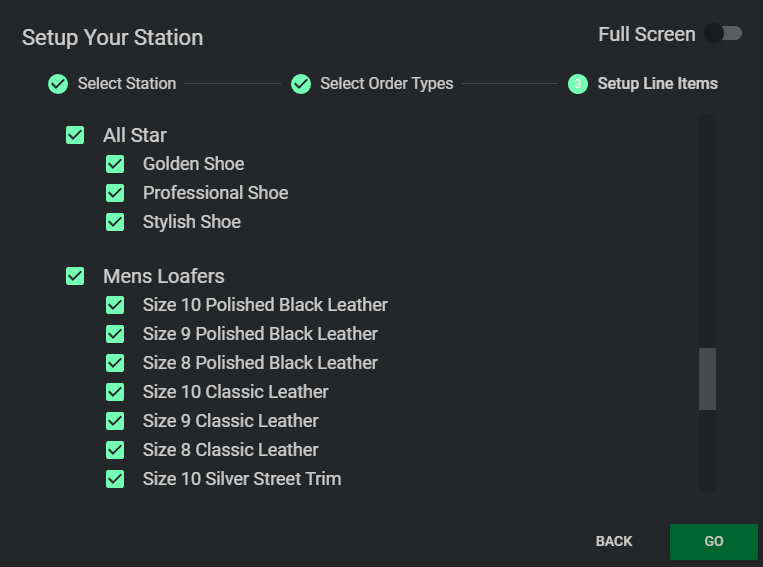
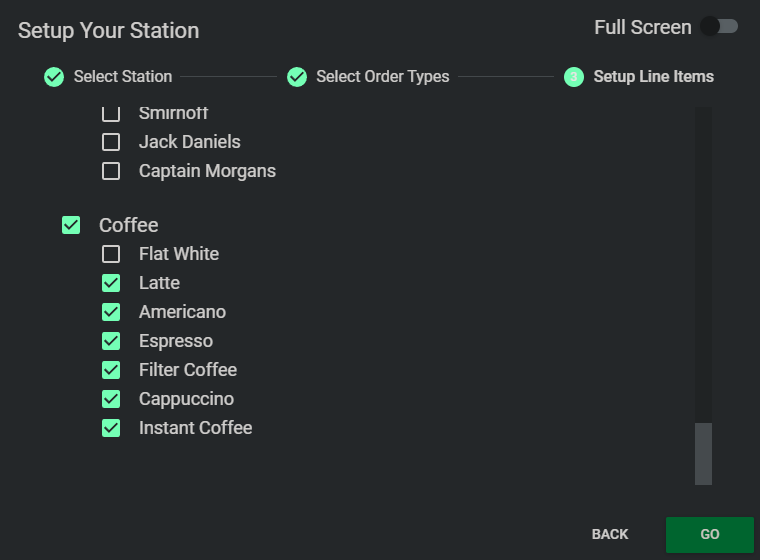
Once happy with the setup, hit Go.
Start Receiving Orders
Orders start coming in and become visible. Online orders are clearly marked so staff can distinguish them from in-store orders.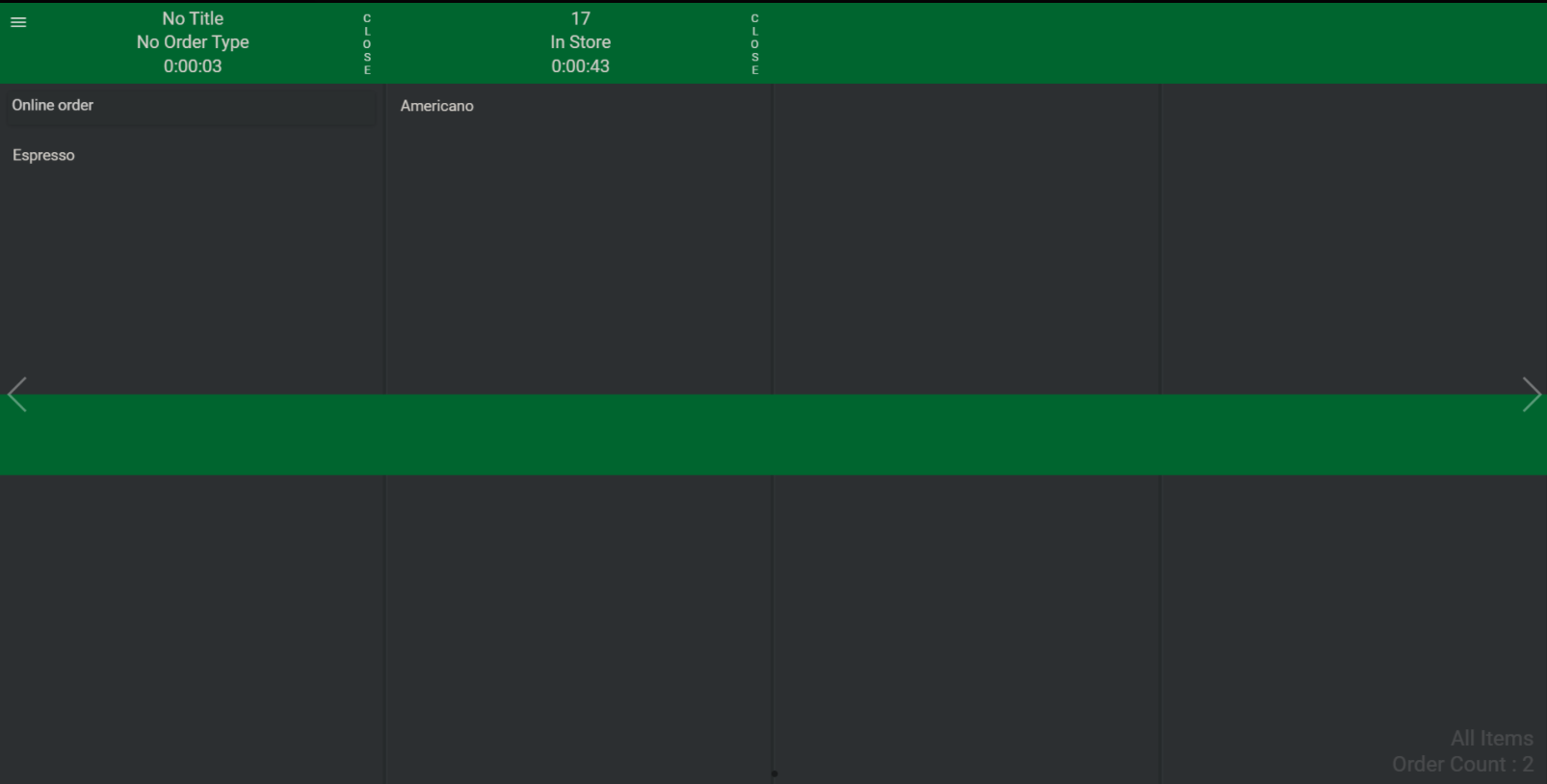
Mad Creation Apps Support
For app-specific support, contact Mad Creation Apps directly:
- Phone: +44 113 320 8646
- Email: support@madcreationapps.com
- Web: www.madcreationapps.com
Tips & Best Practices
Use a dedicated device: A tablet or monitor in the kitchen ensures the display is always visible.
Test before launch: Place a test online order before going live to confirm orders display correctly.