
Before You Begin
- You must be logged into the Facilipay Dashboard with access to customer records.
- Have the customer's name, email address, or Facilipay ID ready before you start.
Step-by-Step: View Transaction History
-
Open the Customers Section
From the Facilipay Dashboard, select Customers from the left-hand navigation menu.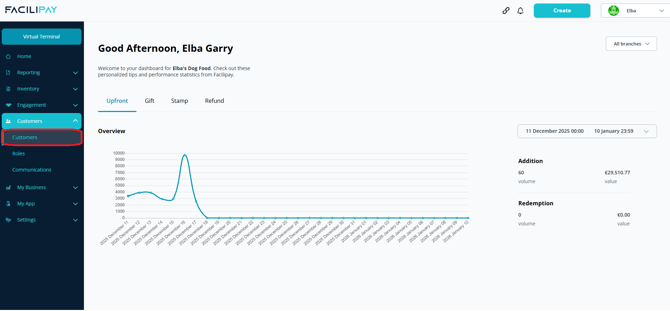
-
Search for the Customer
Use the search bar to locate the customer by:- Full name
- Email address
- Facilipay ID
Facilipay ID: The eight-digit ID located on the back of the customer's gift or loyalty card. For cashless customers using bands or watch straps, this is the code displayed beside "Code Received" on the Clover POS screen after scanning.
-
Open the Transaction History
When the customer appears in search results, click the three grey dots beside their name and select Transactions.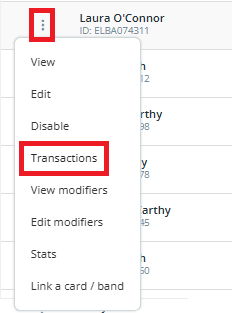
-
Review or Export Transactions
The customer's transaction history will display on screen. You can also export the transactions for:- Reporting purposes
- Customer requests
- Record keeping
Tips & Best Practices
-
Use the Facilipay ID for accuracy: Searching by ID is the most reliable way to locate the right customer if names are common.
-
Verify identity: When acting on a customer enquiry, verify the customer's identity before sharing transaction details.
-
Need help? For further assistance, contact support@facilipay.io.