
Before You Begin
- You must have access to your Clover device with the Facilipay app installed.
- Manager or Admin permissions are required to access wipe functionality.
Step-by-Step: Wipe a Card
-
Open the Facilipay App
Launch the app from your Clover device's home screen. -
Scan the Card or Wristband
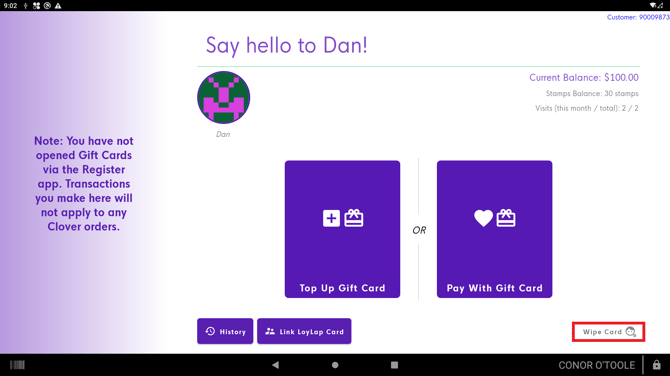
- Scan the card or wristband. The app automatically detects the card number and opens the customer's profile.
- You can view the customer's current balance in the top-right corner of the screen.
-
Wipe the Card
- Tap the Wipe button at the bottom-right of the screen.
- Confirm the action in the pop-up that appears.
- Once wiped, the card can be re-sold or registered to a new account.
Important Notes
-
Wiping a card does not delete the customer's account or remove their balance. It only removes the card or wristband from the account and deactivates that card.
-
By default, only Manager and Admin users can see the Wipe Card and Add/Redeem buttons.
- If you can't see these options, log in on Clover's lock screen with a Manager PIN.
- If options are still unavailable, contact support@facilipay.io to adjust your access level.
What Happens After You Wipe
The card is ready to be reused or linked to a new customer account. The original customer's account and balance remain intact.
Tips & Best Practices
-
Confirm before wiping: Make sure the right card is being wiped — the action removes the card link from the account.
-
Document wipes: Keep a brief record for audit when wiping cards en masse.
-
Need help? For permission queries, contact support@facilipay.io.